Your 2026 Guide to shopify site speed optimization
- shopify site speed
- core web vitals
- shopify optimisation
- ecommerce performance
- improve shopify speed
Launched
May, 2026

A one-second delay in mobile load time can cut conversions by up to 20% in UK ecommerce, and a typical UK Shopify store doing £10,000 a month can see a 20 to 30% conversion lift by moving from a 5-second load time to 2 seconds, according to Nala Networks’ Shopify speed optimisation guide. That’s the right way to think about shopify site speed optimization. Not as a Lighthouse vanity project, but as margin protection.
After auditing enough Shopify stores, the pattern is consistent. Merchants usually blame the theme first. The theme is often part of the problem, but rarely the whole story. The actual bottleneck is normally a stack of small decisions: oversized hero media, scripts loaded in the wrong order, app code injected everywhere, and collection templates doing more work than they need to.
The stores that improve fastest don’t chase every recommendation blindly. They prioritise the fixes that affect real user experience first, then protect those gains with process. That’s where speed work becomes commercially useful.
Why Every Second Matters for Your Shopify Store
A small delay costs real money. On Shopify, speed work earns attention when it improves product discovery, reduces friction before add to cart, and protects checkout intent. That is the standard worth using.
Slow stores do not just feel dated. They interrupt momentum at the exact points where shoppers are deciding whether to trust the page, explore another product, or leave. On mobile, that window is short. If the hero takes too long to render, the gallery stutters, or the page shifts as apps load, the session gets harder than it should be.
Speed is a commercial priority
Teams often frame performance as a technical cleanup task. In practice, it is a conversion and revenue issue first. The useful question is not whether a Lighthouse score went up. The useful question is whether shoppers can reach key moments faster, with less friction.
That is why experienced teams tie performance work to specific page types and outcomes. Homepage speed affects first impressions and category entry. Collection speed affects browsing depth and filter use. Product page speed affects variant selection, add to cart rate, and trust. A proper Shopify technical audit process maps those connections before anyone starts removing code.
Practical rule: If a fix cannot be linked to product discovery, add to cart flow, or checkout progression, it probably belongs lower on the list.
Core Web Vitals tell you where the buying journey breaks
Google’s Core Web Vitals remain the most useful shorthand because each one maps to a shopper complaint we see in audits.
- LCP shows how quickly the main content becomes visible. On Shopify, that is often the hero image, featured product media, or a large section near the top of the page.
- INP shows how fast the page responds after interaction. Variant pickers, filters, cart drawers, and review widgets commonly fail here.
- CLS shows whether the layout stays stable. Late-loading banners, image containers without dimensions, and injected app blocks are common causes.
These metrics matter for prioritisation, not just reporting. A weak LCP points to payload and rendering problems. A weak INP points to JavaScript and interaction bottlenecks. A weak CLS points to template discipline and asset loading order. Each problem has a different fix, a different level of effort, and a different commercial impact.
Lab data finds suspects. Field data confirms the problem
This distinction stops teams from chasing false positives.
| Data type | What it tells you | Best use |
|---|---|---|
| Lab data | Controlled test results from tools such as PageSpeed Insights or Lighthouse | Finding bottlenecks and reproducing them reliably |
| Field data | Real user data from actual visitors on real devices and networks | Confirming whether shoppers are experiencing the problem |
Lab data is where diagnosis starts. Field data decides priority.
A synthetic test might flag unused JavaScript on a template that gets little traffic, while real users are struggling with an app-heavy product page on mobile. That is why we cross-check tool output against shopper behaviour before recommending fixes. The NZ Apps tech performance guide is a useful reference for teams that need a cleaner measurement workflow and a better separation between user-facing symptoms and implementation details.
One more change matters here. INP replaced FID as a Core Web Vital in 2024. For Shopify stores, that reflects how performance problems have shifted. Initial load still matters, but many lost conversions now come from what happens after the page appears, especially on mobile storefronts carrying too much app logic on key templates.
Conducting Your Performance Audit
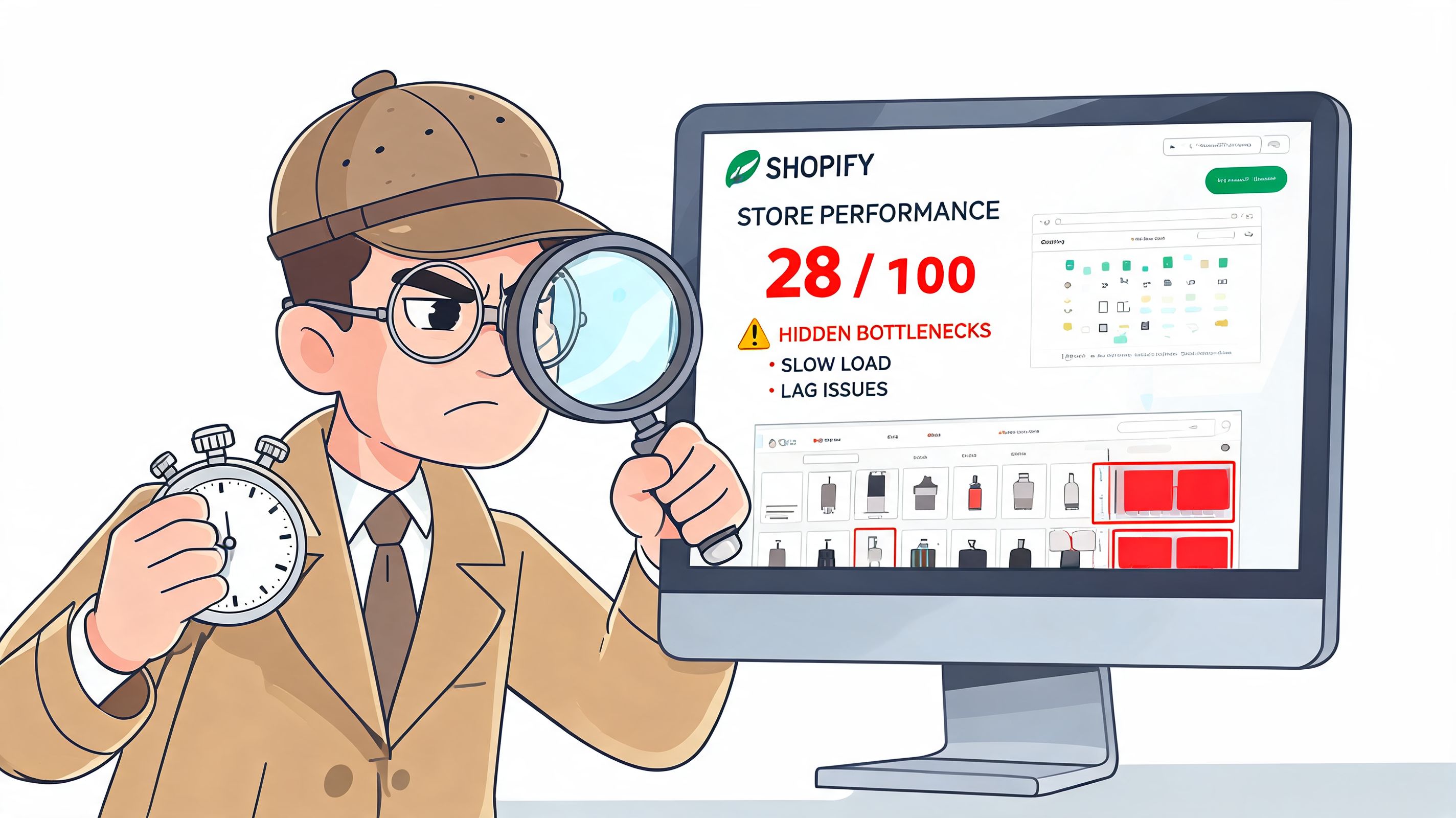
Most performance work goes wrong before any code changes happen. People start fixing whatever PageSpeed highlights in red, without checking whether that issue is affecting real users, key templates, or commercial pages.
Start by finding the actual bottleneck.
Begin with store-level evidence
Open Shopify’s Web Performance reporting first. That gives you the broad picture. Look at home, collection, and product pages separately because they usually fail for different reasons. Homepages often suffer from media weight, collection pages from pagination and filters, and product pages from galleries, reviews, upsells, and variant logic.
Then validate with PageSpeed Insights and Lighthouse. For a more structured measurement workflow, the NZ Apps tech performance guide is a useful companion because it helps teams separate user-facing symptoms from implementation details.
A proper audit also needs location context. Expert workflows commonly use GTmetrix or Lighthouse with UK server locations, aiming for a sub-3-second load threshold because abandonment reaches 32% for UK mobile users beyond that point. The same benchmark notes that oversized images account for 80% of slowdowns and redundant apps can increase payloads by 2 to 3 times, which is why image and app analysis belong at the top of the checklist in a performance audit workflow for Shopify stores.
Check templates, not just the homepage
A homepage score is not a store audit. Buyers spend more time on collection and product templates, and that’s where scripts, dynamic content, and app injections pile up.
Use a short audit list:
- Homepage for hero media, announcement bars, pop-ups, and app embeds.
- Collection pages for filters, product grids, swatches, and pagination.
- Product pages for gallery behaviour, reviews, recommendations, subscriptions, and sticky cart features.
- Cart and drawer cart for shipping bars, gift widgets, and promo logic.
When I audit stores, the product page usually tells the truth fastest. It contains the most business logic and the most opportunities for code bloat.
Don’t ask which page has the worst score. Ask which page earns the most money and feels slow.
Use DevTools like a developer, not a spectator
Chrome DevTools gives you the evidence PageSpeed summaries often hide.
Open the Network tab and reload the page with cache disabled. You’re looking for a waterfall pattern that answers three questions:
What starts first
If the browser is fetching non-critical apps before rendering key content, priorities are wrong.What takes longest
Large images, bulky scripts, or third-party calls usually show up immediately.What blocks interactivity
If script execution clusters around page load, users will feel lag before they can interact.
The Performance tab is where INP issues become clearer. Record a session, click variant selectors, open the cart drawer, use filters, and watch for long tasks. If the browser locks up after a click, you’re no longer dealing with a loading problem alone. You’re dealing with execution cost.
Later in the process, this walkthrough helps merchants understand what developers mean when they talk about blocking resources and main-thread work.
Turn findings into a priority list
An audit only matters if it ends with order. Many teams slip at this stage. They collect twenty recommendations and treat them as equal.
They aren’t equal.
| Priority | What to fix first | Why it goes first |
|---|---|---|
| High | LCP element, above-the-fold media, blocking scripts | These affect first impression and conversion path |
| Medium | Template inefficiencies, unused assets, app leftovers | These drag page weight and execution over time |
| Later | Low-impact warnings and cosmetic score tweaks | These rarely change user behaviour on their own |
If you need a more technical checklist before implementation, Grumspot’s Shopify technical audit guide is the right kind of framework to use. It forces the conversation back to templates, dependencies, and business impact instead of generic cleanup.
The Core Optimisation Playbook High-Impact Fixes
Once the audit is clear, the work becomes less mysterious. Most meaningful speed gains come from a handful of levers used in the right order. Not all fixes carry the same weight, and not all “best practices” are worth doing immediately.
The most reliable wins usually sit in three places: images, theme output, and app behaviour.
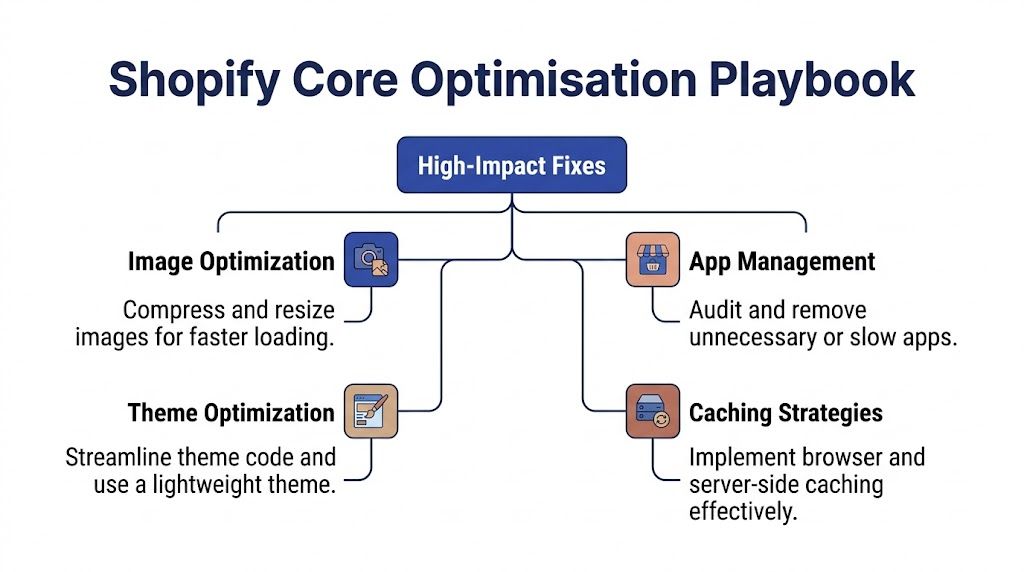
Image optimisation that actually moves LCP
If the hero section is slow, start there. Not with a bulk image plugin. Not with a full theme rebuild. Start with the asset most likely to become the Largest Contentful Paint element.
According to Atlassoft Web’s advanced Shopify speed guide, unoptimised above-the-fold imagery affects 70% of slow-loading UK Shopify sites. It also notes that converting hero images to WebP, adding explicit width and height attributes, and setting fetchpriority='high' can reduce LCP by 300 to 600ms, while lazy loading and WebP can yield 40% speed gains overall.
That lines up with what works in live storefronts. The first image needs special treatment. Everything below the fold can wait.
What to do with above-the-fold images
- Convert the hero asset to WebP so the browser downloads less data.
- Set explicit dimensions so the browser reserves the right space and avoids layout shifts.
- Use high fetch priority on the main image only so the browser knows what matters.
- Avoid lazy loading the LCP image because that often delays the very element you need first.
A lot of merchants accidentally sabotage LCP by applying lazy loading everywhere. That’s a good example of a good tactic used badly.
Theme optimisation is mostly about restraint
Heavy themes don’t fail because they’re modern. They fail because they’re asked to do too much on every template.
A sensible theme pass usually includes:
- Deferring non-critical JavaScript so scripts don’t block first render.
- Inlining only critical CSS for above-the-fold sections.
- Removing duplicate libraries loaded by apps and theme features together.
- Limiting what renders on initial load instead of sending every interaction path upfront.
The trade-off is important. Rich storefront interactions can help conversion, but only if they don’t tax the browser before the shopper has even seen the product. Animations, sliders, pop-ups, chat widgets, urgency banners, review carousels, and sticky UI layers all compete for the same early milliseconds.
Developer’s view: A fast store is usually a store that decides what can wait.
Collection pages deserve stricter rules
Collection templates often become invisible performance debt. Merchants want bigger grids, endless products, quick-add cards, swatches, labels, filters, badges, and dynamic merchandising all at once.
That combination gets expensive quickly.
A practical rule is to keep collection output tight. Paginate aggressively, simplify card markup, and avoid injecting app code into every product tile unless it clearly earns its place. Product cards multiply everything. One expensive component isn’t expensive once. It’s expensive dozens of times per page.
App management means tracing cost, not deleting blindly
“Remove apps” is lazy advice. Some apps are critical. Reviews, subscriptions, search, bundles, loyalty, shipping logic, and merchandising tools can justify their weight. The essential task is to measure their cost and decide whether that cost is acceptable.
Here’s the process I use.
Step one checks usage
List every installed app and ask four questions:
| Question | What you’re checking |
|---|---|
| Is it still used? | Many stores keep old apps long after replacing them |
| Does it load sitewide? | A script on every page is more expensive than one on a single template |
| Can Shopify handle this natively now? | Native platform features often remove the need for a third-party script |
| Is the visual feature worth the runtime cost? | Nice-to-have widgets often fail this test |
Step two checks implementation quality
An app can be useful and still badly implemented. Look for injected scripts in theme.liquid, leftover snippets, app blocks on templates where they aren’t needed, and duplicate tracking tags. Uninstalling an app doesn’t always remove its footprint.
Merchants frequently fall into a trap. They think the app is gone because the billing stopped. The storefront still carries the code.
Step three decides the right response
Different problems need different answers.
- If the app is unused, remove it fully and clean the leftover code.
- If the app is essential but heavy, limit where it loads.
- If the app duplicates native Shopify capability, replace it.
- If the app drives revenue clearly, keep it and optimise around it.
That last point matters. Performance work isn’t about ideological purity. Sometimes a heavier feature earns more than it costs. But you should make that trade-off deliberately, not by accident.
A practical reference for broader implementation ideas sits in Grumspot’s guide on improving website loading speed, especially when the issue spans theme output, media handling, and third-party scripts together.
Caching and delivery are the supporting layer
Caching won’t rescue a bloated page, but it amplifies good frontend decisions. Once assets are compressed, scripts are ordered properly, and templates are leaner, caching helps repeat visits feel quicker and page transitions stay smooth.
On Shopify, the useful question isn’t whether caching exists. It does. The useful question is whether your store is delivering efficient assets worth caching in the first place.
That’s why I treat caching as support work, not first-responder work. Fix what the browser receives, then make delivery more efficient.
Advanced Techniques for Peak Performance
Most stores can get materially faster with the core playbook alone. Getting from “better” to “sharp” usually requires deeper work in Liquid, JavaScript architecture, and how the store handles regional complexity.
That’s where speed stops being a front-end tidy-up and becomes a systems problem.
Liquid can quietly damage TTFB
A page can look lightweight in the browser and still feel slow because the server did too much work before sending the first useful response.
That often happens in Liquid through:
- oversized loops
- repeated snippet rendering
- over-built mega menus
- collection templates rendering too many products
- logic-heavy sections that run everywhere
Storefront teams miss the connection between clean code and user speed. If the template asks Shopify to assemble too much before the browser gets anything back, TTFB rises and LCP usually suffers afterwards.
That matters even more for international stores. UK-specific data cited by Wgentech’s analysis of Shopify speed bottlenecks shows TTFB worsened by 18% for cross-border UK-EU flows due to unoptimised markets and shipping apps. Those issues often stay hidden until traffic spikes or regional logic gets more complex.
JavaScript strategy matters more than JavaScript quantity alone
Teams often focus on how much JavaScript they load. The bigger issue is usually when and how it executes.
A few practical improvements tend to pay off:
Split behaviour by template
Don’t load product-gallery logic on blog pages. Don’t run filter code on the homepage. Don’t initialise app widgets on templates where they never render.
This sounds obvious, but many Shopify themes and app scripts still behave globally. That’s convenient for development and expensive for the browser.
Delay non-essential interactions
Chat, quizzes, advanced personalisation widgets, and some marketing tools don’t need to initialise at first paint. They can load after the main content is visible or after user interaction.
That doesn’t mean “disable everything”. It means sequencing the experience so the buying path gets priority.
Use platform-native tracking where possible
When stores carry years of pixel additions, marketing scripts often become the largest source of execution delay. Consolidating tracking and moving away from scattered legacy injections usually improves responsiveness and makes debugging easier.
The browser doesn’t care which team requested a script. It only cares that it has to execute it.
CDN and regional performance need configuration discipline
Shopify’s global delivery infrastructure is strong, but regional performance can still degrade when the storefront depends on poorly configured third-party services, especially for shipping logic, tax handling, and market-specific content.
For UK stores selling cross-border, this shows up in ways generic speed advice doesn’t catch. The page may pass a desktop test and still feel sluggish during high-load events because external dependencies are slow, duplicated, or conflicting.
That’s why high-performance stores treat these as architectural concerns:
| Layer | Common issue | Better approach |
|---|---|---|
| Markets setup | Regional logic stacked through apps | Use the simplest rule structure possible |
| Shipping and tax tools | Multiple overlapping real-time checks | Reduce duplication and test edge cases |
| Third-party APIs | Slow responses during traffic peaks | Limit storefront dependence where you can |
For teams dealing with those wider patterns, Grumspot’s common Shopify performance issues and solutions is relevant because it connects front-end symptoms to platform and integration causes.
Predictive prefetching and headless are not for everyone
There’s always a point where the next performance gain costs more than it returns.
Predictive prefetching can make browsing feel much quicker when users move from collection to product pages repeatedly. It’s useful for large catalogues, high-consideration shopping journeys, and stores where page transitions are part of the conversion path. It’s less useful if the main issue is still a bloated product template or poor media handling. Fix fundamentals first.
Headless builds and Hydrogen can also provide a faster, more controlled experience, but they add operational complexity. They make sense when a brand needs architectural flexibility, highly custom interactions, or tighter control over rendering strategy. They don’t make sense as a shortcut around unresolved theme and app debt.
The practical rule is simple. Don’t use advanced architecture to avoid basic discipline.
Maintaining Momentum Testing Monitoring and Rollbacks
The fastest stores don’t stay fast by accident. They stay fast because someone treats performance as a release standard, not a clean-up project.
That changes how teams ship.
Test changes in a duplicate theme first
Every material change should happen in a duplicate theme before it touches the live storefront. That includes app installs, code edits, tracking updates, media-heavy campaign pages, and major section redesigns.
The reason isn’t only visual safety. It’s performance containment. A harmless-looking update can add scripts, duplicate CSS, or change template output in ways nobody notices until mobile users feel it.
A simple release habit works well:
- Duplicate the live theme before changes begin.
- Apply one performance change at a time where possible.
- Re-test the affected templates rather than checking only the homepage.
- Publish only after comparison against the previous state.
Create a performance budget
A performance budget gives teams a line they shouldn’t cross. Without one, every new feature wins by default.
A good budget doesn’t need to be complicated. It can be written in plain language:
| Budget area | Example rule |
|---|---|
| Page weight | Don’t add large assets without replacing something else |
| Scripts | New app or tracking code must justify sitewide execution |
| Templates | Product cards and PDP sections must stay lean |
| Media | Above-the-fold assets need manual review before launch |
That kind of policy helps designers, marketers, and developers make better trade-offs before the store slows down.
Monitor after launches, not just before them
Stores often regress after campaign work, seasonal promotions, app changes, or theme edits. The fix is process, not panic. Check your key templates regularly, compare results over time, and keep a lightweight changelog that notes what changed and when.
Operational habit: If performance drops and nobody knows what shipped last week, diagnosis takes longer than the fix.
Shopify’s own reporting, PageSpeed Insights, and browser-based checks are usually enough for ongoing monitoring if someone reviews them. The important part is consistency.
Always keep a rollback path
Some updates look fine in staging and fail under live traffic. That’s normal. What matters is whether you can reverse them quickly.
Keep previous theme versions organised. Document app additions and script changes. If a feature causes instability, remove the variable first and debate it later. Speed work gets easier when rollback is part of the release plan instead of an afterthought.
Frequently Asked Questions
Will changing my theme fix speed problems?
A theme swap can help, but only when the theme is part of the problem. I’ve audited stores that moved to a newer theme and saw little change because the primary bottleneck was still third party JavaScript, oversized media, or app code injected across every template.
Check the theme against what users experience. If LCP is poor on product pages, the issue may be hero media, gallery behaviour, or review widgets rather than the base theme itself. If INP is weak, variant logic, upsell apps, and tracking scripts often matter more than the visual layer. Theme work pays off when it removes rendering weight and gives you cleaner code paths. It does not fix a messy stack on its own.
How do I know which apps to remove?
Start with revenue impact, then measure technical cost.
An app should earn its place. If it duplicates a Shopify feature, supports a campaign that already ended, or loads code sitewide for a minor visual effect, it belongs on the review list. The next step is diagnosis. Check whether it injects render blocking scripts, adds requests to every page, or slows interaction on mobile.
Do not remove apps blindly. Reviews, subscriptions, search, bundling, and merchandising tools can hurt performance, but they can also lift conversion rate. The right decision is often to replace a heavy app, limit where it loads, or move part of the function into theme code instead of deleting the feature outright.
Can a store become too optimised?
Yes. Chasing scores without protecting conversion paths is a common mistake.
A store can post better lab results after stripping out reviews, trust elements, sticky add to cart bars, search enhancements, or recommendation blocks. If those features help customers buy, removing them can lower revenue even while Lighthouse looks cleaner. Good shopify site speed optimization reduces friction around the buying journey. It does not turn the storefront into a technical demo.
The goal is faster pages that still sell.
What should I prioritise first if I can only do a few things?
Prioritise the templates and elements closest to purchase. For most stores, that means homepage hero media, collection grids, product galleries, variant selection, add to cart flows, and the scripts attached to those areas.
Map each fix to a Core Web Vital. Heavy above the fold media usually hits LCP. Third party scripts and complex product logic often hurt INP. Layout shifts from banners, app blocks, or late loading widgets affect CLS. That approach keeps effort tied to user experience and business outcomes instead of low value warnings in a report.
Is professional speed optimisation worth paying for?
For a simple store, sometimes no. A small catalogue on a clean theme can often improve performance through disciplined image handling, script cleanup, and better release habits.
Complex stores are different. Shopify Plus builds with subscriptions, localisation, custom storefront logic, ERP or CRM integrations, and several app dependencies need deeper diagnosis. The value of specialist help is prioritisation. Which issue is costing speed on revenue pages, what can be deferred, what should stay because it improves conversion, and how to ship changes without breaking the storefront. That is the difference between generic cleanup and performance work that protects revenue.
If your store feels slower than it should, Grumspot helps with the technical work that generic checklists usually miss, including theme optimisation, Shopify 2.0 rebuilds, custom app work, and performance-focused audits tied to conversion outcomes.
Let's build something together
If you like what you saw, let's jump on a quick call and discuss your project

Related posts
Check out some similar posts.

- technical seo site audit
Run a technical SEO site audit that finds what matters. A practical ecommerce workflow covering craw...
Read more
- core web vitals optimization
Master core web vitals optimization with a step-by-step playbook covering LCP, INP, CLS fixes, Shopi...
Read more
- render blocking resources
Learn what render blocking resources are, how they hurt Core Web Vitals, and how to fix them on Shop...
Read more
- critical rendering path
Master the critical rendering path with practical optimisation tactics, DevTools measurement, and Sh...
Read more