How to Build an Accessible Image with Text Overlay
- image text overlay
- text over image CSS
- overlay contrast ratio
- Shopify hero banner
- accessible image text
Launched
October, 2026

You're looking at a hero that passed design review on a wide monitor. On a 390px phone the headline covers the product, and at 400% zoom the button vanishes under a fixed height. That banner is an image with text overlay, and baking the words into the JPEG fails as soon as someone zooms, switches language, or uses a screen reader. UK online retail exceeded £125 billion in 2024 after growing by more than 3%, according to Mintel's UK Online Retailing Market Report 2025. The visual still earns the click. In 2025, more than 30% of UK consumers said social media prompted impulse purchases at least monthly, and Sprout Social's 2025 Social Index flagged visually prominent posts with product links as an important conversion format. Build the banner as live layers, then prove it at 390px, 768px and 400% zoom, not on the desktop mockup.
The Five Layers Every Overlay Needs
An image with text overlay is five layers, and only one of them is a picture. The photo sits in a picture element with srcset and sizes, inside a wrapper that reserves space with aspect-ratio. The scrim is a ::after pseudo-element: a linear-gradient or rgba fill that exists only in CSS. Headline, supporting copy and call to action are live HTML, stacked with absolute positioning.
Separate layers fail separately, which makes each failure cheap to find. Live text stays sharp at 400% zoom, resizes through clamp() without a new export, translates without touching the artwork, and reaches a screen reader in DOM order. The UK Government Design System guidance on images says information in an image must stay understandable to someone who can't see it, and it recommends avoiding images that contain text. When the words do have to sit over the photo, they still need an equivalent in writing and enough contrast under WCAG 2.2 success criterion 1.4.3. On a Shopify storefront the overlay reinforces the page's live heading, product details and call to action; those remain live text in their own right. If a campaign also needs flat artwork for paid social, add text overlays to images for those exports, then repeat the offer in HTML on the storefront.
| Layer | Implementation | Breakpoint behaviour | Pass check |
|---|---|---|---|
| Image | picture with srcset and sizes; aspect-ratio on the wrapper | crop changes per breakpoint; focal point set with object-position | hero loads with no layout shift |
| Scrim | ::after pseudo-element with linear-gradient or rgba fill | stronger on phones, where text covers more of the frame | contrast passes at the weakest point of the gradient |
| Headline | h2 with clamp() font size and max-width around 20em | about 1.75rem at 390px, roughly 1.9rem at 768px, 3rem at 1280px | heading level matches page structure and text is selectable |
| Supporting copy | p elements in DOM order over the image | stays in DOM order and visible at every size | same text is available to screen readers |
| Call to action | a link with 44px minimum height and padding | full-width tap target on phones, auto width on desktop | visible focus ring and label contrast of 4.5:1 |
If you can't select and copy a line, it is sitting in the wrong layer.
How to Build the Overlay in HTML and CSS
Each step depends on the one before it. Skip the CSS background-image shortcut. It drops srcset and the alt text in one move.
The flow below is the same sequence, from the reserved frame through to a contrast check on both crops.
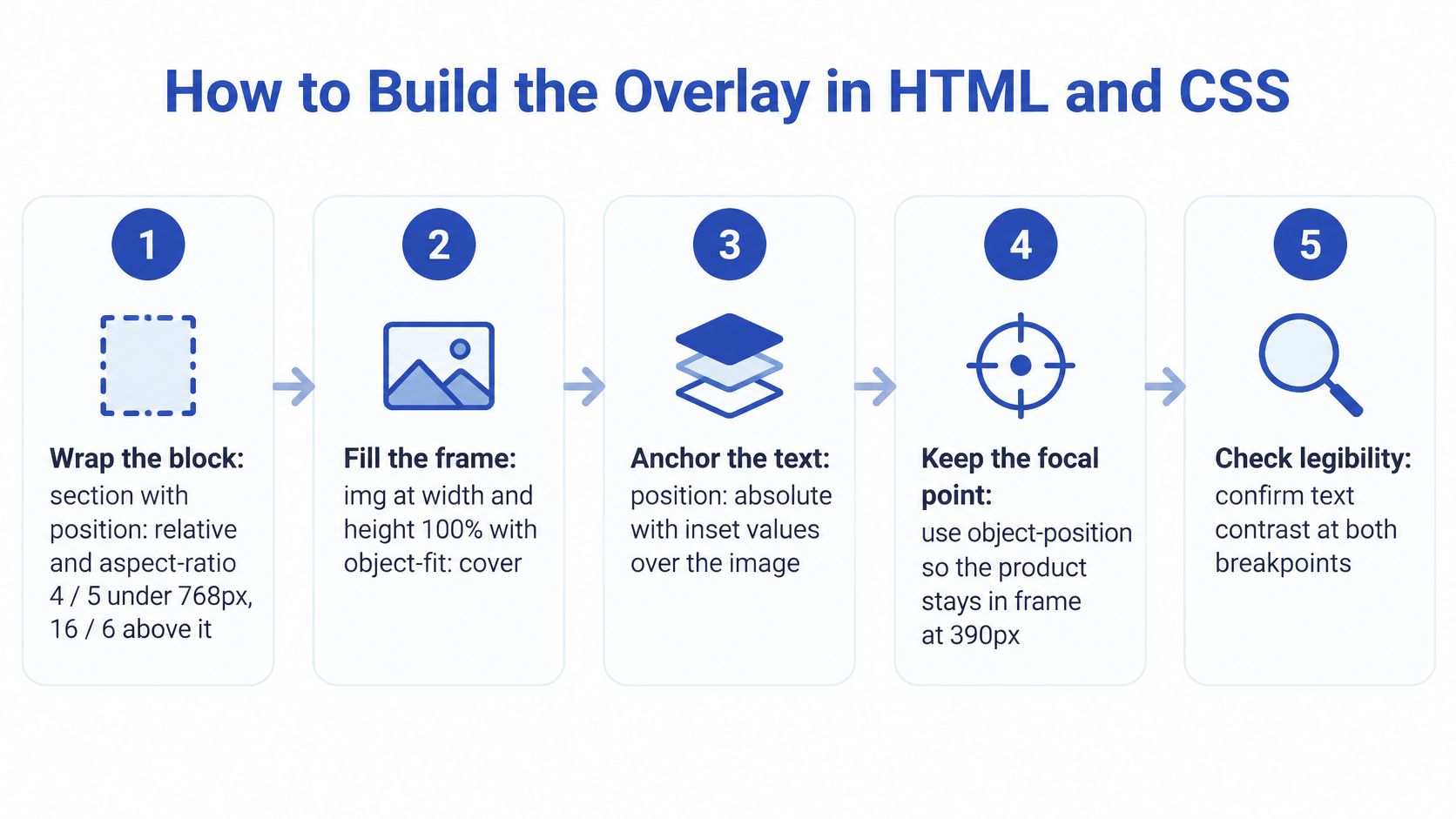
- Reserve the frame. Wrap the block in a
sectionwithposition: relative. Setaspect-ratio: 4 / 5under 768px and16 / 6above it. The space is claimed before the file arrives, so the button doesn't jump. - Serve a crop that matches the viewport. Put the photo in
picture, or use Shopify'simage_urlandimage_tagwith a width range andsizesthat match the crop. A phone should fetch a file around 750px wide, not a 2400px original. Set theimgtowidth: 100%,height: 100%andobject-fit: cover. - Anchor the copy. A content
divusesposition: absolute,inset: 0,display: flexand padding fromclamp(). On phones the text sits in the lower third. On desktop it sits in the left third, clear of the product. - Paint a full-width scrim. A
::afteron the text block runs alinear-gradientfrom transparent torgba(0,0,0,0.6)across the whole width of that block. Raise opacity only until the weakest point passes. A scrim on one edge leaves the bright corner bare. - Size the headline in CSS. Use an
h2withfont-size: clamp(1.75rem, 4vw, 3rem)andmax-width: 20em. It wraps instead of overflowing. - Set a focal point per breakpoint.
object-positionon the image keeps the product in frame at 390px when the crop gets taller. One desktop value reused everywhere is how faces get covered. - Make the button a real link. Give it
min-height: 44pxand clear padding. Adivwith a click handler won't take keyboard focus.
Keyboard order
Press Tab once from the top of the block. Focus should hit the link in the same order a screen reader reads the heading and the paragraph. If the ring lands somewhere else, the markup order is wrong and CSS is only hiding it.
A short walkthrough of the same stacking, from wrapper to scrim, is worth watching before you commit the section to a theme.
Practical rule: If the words aren't in the DOM, no amount of gradient will make the banner accessible.
Contrast Ratios and Scrim Settings
Measure on the rendered crop, not the source file. The worst pixel behind the glyphs is the one that counts. Sample it with the browser DevTools colour picker, or with an online checker, against that sampled background. UK Government communications guidance on accessibility standards asks for strong contrast and warns that text over images is hard to read, suggesting a solid background or an opaque overlay where a tint isn't enough. Validate normal text at 4.5:1 and large text at 3:1, then check focus, reading order and zoom up to 400%.
| Text or UI role | Minimum ratio | Typical condition | Starting scrim |
|---|---|---|---|
| Body text under 24px regular | 4.5:1 | supporting line on a lifestyle photo | rgba(0,0,0,0.55) behind the text block |
| Large text, 24px regular or 18.66px bold and above | 3:1 | headline on a lifestyle photo | rgba(0,0,0,0.40) across the headline |
| Button label | 4.5:1 against its fill | white text on a brand colour | solid fill, no scrim needed |
| Button border, focus ring or icon | 3:1 | outline ring on a dark photo | 2px outline with a light and dark halo, no scrim needed |
| Text over busy detail such as foliage or fabric | 4.5:1 at the worst point | high-frequency texture | rgba(0,0,0,0.75) panel behind that line |
Those scrim values are starting points. Begin darker and raise opacity only until the weakest point passes. A solid panel guarantees the ratio and hides the photo. A gradient keeps the photo and has to be retested on every crop, because a desktop-safe overlay can lose contrast once the mobile crop moves the text onto a window or a white shirt.
When a brand colour fails
A bright sale yellow behind white text often misses even 3:1. Put the label on a solid fill instead of hoping the photo will darken it. Button borders, focus rings and icons need 3:1 against adjacent colours under WCAG 1.4.11, which a single dark outline on a dark coat will miss. Use a 2px ring with a light and dark halo.
Don't use colour alone for urgency. Monitoring treats colour, contrast, reflow and images of text as separate tests. For the sampling method itself, color accessibility guidance for design teams walks through how to validate a pair, and a colour contrast accessibility check is the habit to keep before a theme goes live. Test the lightest and busiest corner of every banner, not the average of the frame.
Mobile Crops, Zoom and Focus Problems
The failure that shows up first is a headline sitting on the product at 390px, because the desktop focal point was reused on a taller crop. The Government Digital Service monitoring programme for 2022 to 2024 checks WCAG 1.4.5, Images of Text, a Level AA criterion, on both desktop and mobile. Mobile isn't an optional extra. The same guidance flags poor contrast, text that won't resize, and wording that assistive tech never hears unless you supply an equivalent. Meaningful text shouldn't live inside the bitmap, because it can't be resized, deteriorates when magnified, and can't be customised.
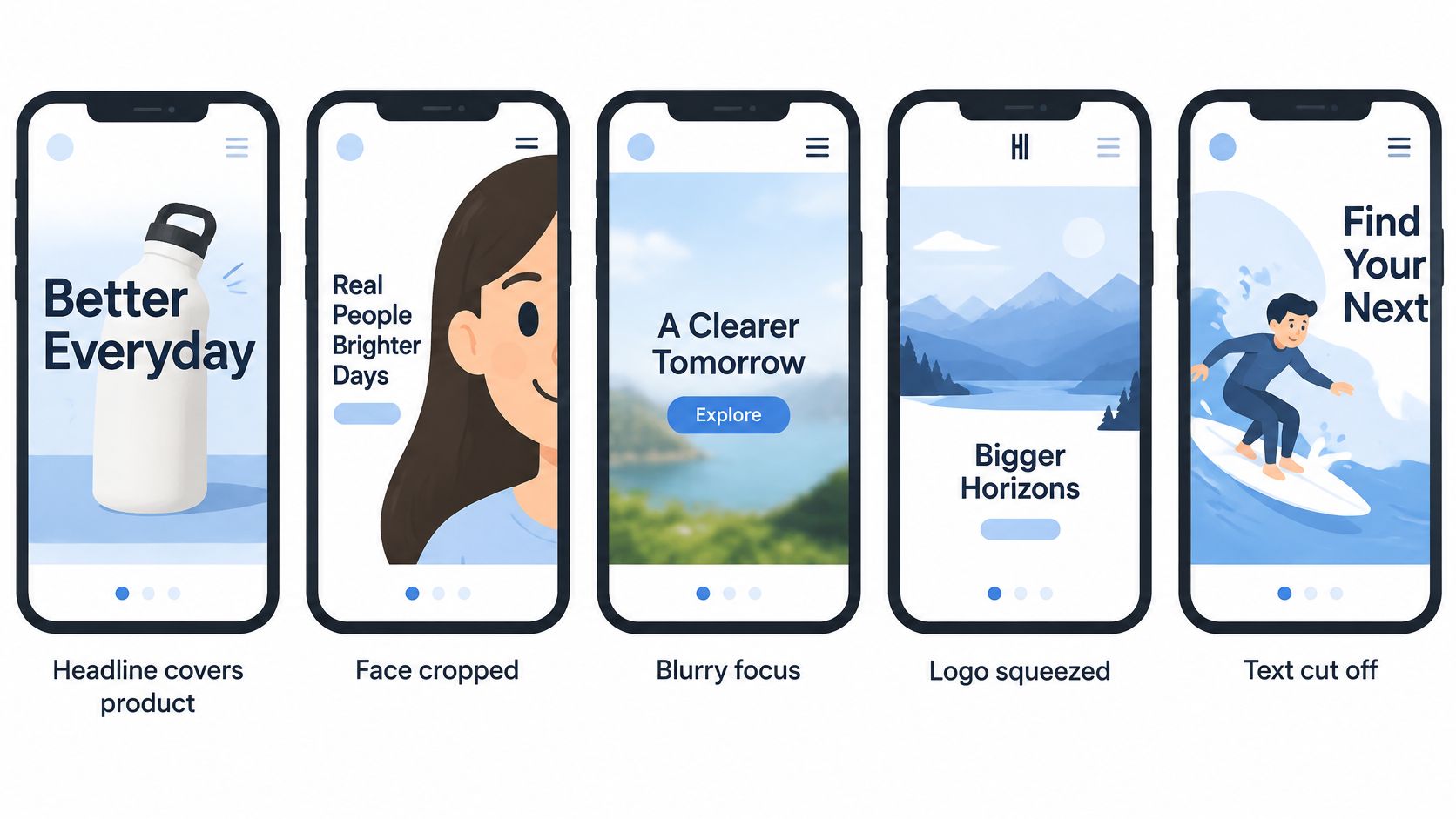
| Symptom | Likely cause | Fix |
|---|---|---|
| Text unreadable in one bright corner | scrim applied to one side only | extend the gradient across the full text width or raise opacity behind the text |
| Text clipped at 400% zoom | fixed height with overflow hidden | use min-height and let content grow with the text |
| Copy squeezed on tablet portrait | a 16 / 6 landscape ratio reused in portrait | switch to a taller ratio at the tablet breakpoint |
| Focus ring disappears on a light photo | outline colour matches the image | 2px outline with offset and a colour that contrasts with both light and dark areas |
| Overlay text read out of order | visual position differs from source order | move the markup into reading order and position it with CSS |
WCAG 1.4.10 expects content to work at a 320 CSS pixel width. That's what 400% zoom produces on a 1280px screen. A fixed height with overflow: hidden clips the headline exactly there. Use min-height and let the block grow.
How to test the three widths
Check 390px, 768px and 1280px. Use browser zoom as well as DevTools device mode. Device mode changes the viewport, but it doesn't scale text the way a shopper's zoom does. On tablet portrait, a wide-format ratio crushes the paragraph into two unreadable lines, so switch to the taller ratio at that breakpoint. If the same product photo also has to work as a marketplace thumbnail, optimize Amazon thumbnails for product listings under those file rules, and keep the storefront banner on live text.
Live HTML for the offer, and treat any wording baked into the file as extra, with an accessible equivalent beside it.
Alt Text and Shopify Section Settings
Merchants should change the overlay without opening the theme code. A section schema does that.
image_pickernamedbackground_imagefor the photo.textsettings for the heading and the button label.- A
urlsetting for the link destination. - A
rangecalledoverlay_opacity, from 0 to 80 in steps of 5, default 45. - A
selectcalledtext_position, with bottom-left, centre and bottom-right.
Alt text comes from the image's alt field in the Shopify admin, so tell the merchant to fill it in. Mark the heading and button as translatable settings so each language gets its own strings. A dark translucent box behind the headline improves sighted reading and can pass contrast. It does not make text inside a bitmap available to screen readers, zoom or translation. Use the box for the look, and repeat the offer in HTML.
| Image role | Alt text | Where the overlay wording lives |
|---|---|---|
| Decorative texture or background | empty alt="" | nowhere, all copy sits in HTML |
| Campaign banner with an offer | describes the scene, e.g. a wool coat on a grey wall | offer repeated in an h2 and button |
| Sale badge baked into artwork | avoid, or keep it short | HTML span with the same wording |
| Product hero photo | product name and one key attribute | overlay headline in HTML |
| Image carrying an end date or terms | summarises the offer and the end date | full terms in visible text below the banner |
Widgets are a different overlay
An accessibility overlay widget is not this design layer. Medway Council's website accessibility advice warns that those widgets can interfere with screen readers such as JAWS and NVDA, mask defects, and create new problems. They don't fix the page. Keep them out of the theme. A flat creative is faster for paid social, but offer terms still belong in surrounding HTML. Pair concise alt text with a real heading, and check screen reader compatibility on the live section before you hand the theme to merchandising.
Run These Checks Before You Publish
A late image moves the button, so performance comes first.
Only the hero gets fetchpriority="high". It is usually the largest contentful paint, and a second priority hint splits the bandwidth. Every other banner uses loading="lazy". Give each image width and height, or a reserved aspect-ratio, so the overlay does not jump when the file paints. Aim for a mobile hero under about 200 KB, served as WebP or AVIF.
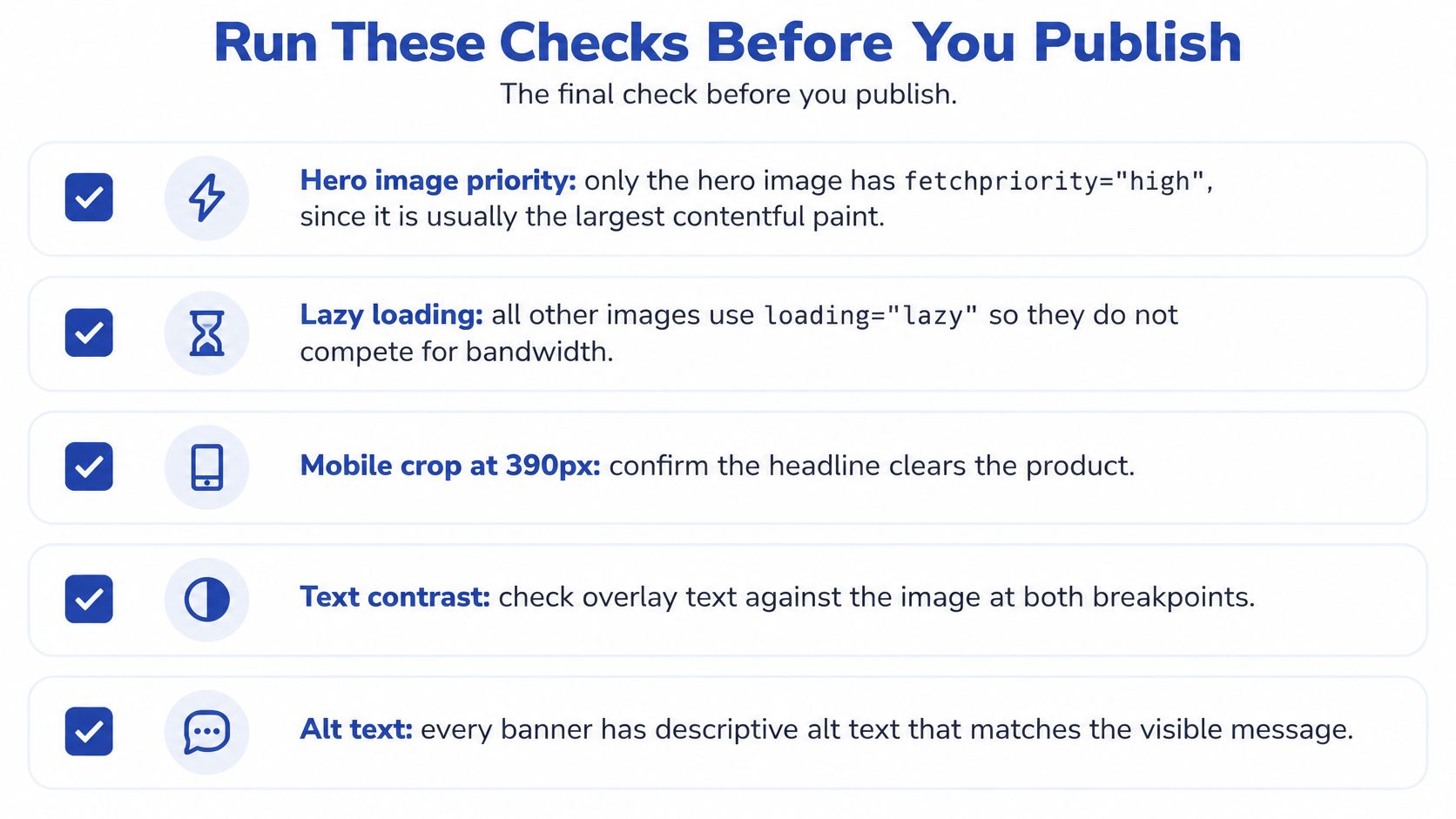
Content checks that desktop QA misses
- Read every translation in place. German often runs noticeably longer than English, so a headline locked to a fixed width can break.
clamp()andmax-widthabsorb the extra length. A pixel width on theh2does not. - Move offer terms into visible HTML under any banner that states an end date, a code or an exclusion. The photo can hint at the promotion. The terms have to be selectable.
- Run axe or WAVE on the live URL for a hero, a collection banner and a promotional tile. Then inspect every crop and language by hand at 390px, 768px and 400% zoom. Variable product photography and longer translated lines fail in ways a static desktop pass never sees.
Before sign-off, confirm contrast, 400% zoom, the focus ring and screen reader order on those same three banners. I would treat any text baked into artwork as a failure until the same offer exists as HTML. Website accessibility examples are a useful comparison when deciding whether a failure is the crop or the markup. The next job is a list, not another mockup. Write down every banner that carries offer terms, and move those terms into HTML first.
Grumspot designs and builds Shopify and Shopify Plus storefronts where banners, product media and calls to action stay fast and accessible after launch. If your heroes still rely on flattened artwork, the team can rebuild them as live layers and fold the work into a theme audit or a Shopify 2.0 migration. Talk to Grumspot about a banner pass on your current theme.
Let's build something together
If you like what you saw, let's jump on a quick call and discuss your project

Related posts
Check out some similar posts.